
- What is the App for T-Mobile?
- How to Download & Install the T Mobile Internet App
- Setup & Core Features of the T Mobile Internet App
- Pricing, Free Trial, Payments & Account Access
- International Availability + App Comparison
- FAQs
- What is the app for T-Mobile?
- What can the T-Mobile Home Internet app do?
- How do I install internet apps?
- Can I try T-Mobile Internet for free?
- Which app is for free internet?
- What is the monthly cost of T-Mobile Internet?
- How to pay for T-Mobile Internet?
- How do I access my T-Mobile Internet?
- How to create a T-Mobile Internet account?
- How to check the internet on T-Mobile?
- Can you set up T-Mobile Internet without an app?
- Conclusion
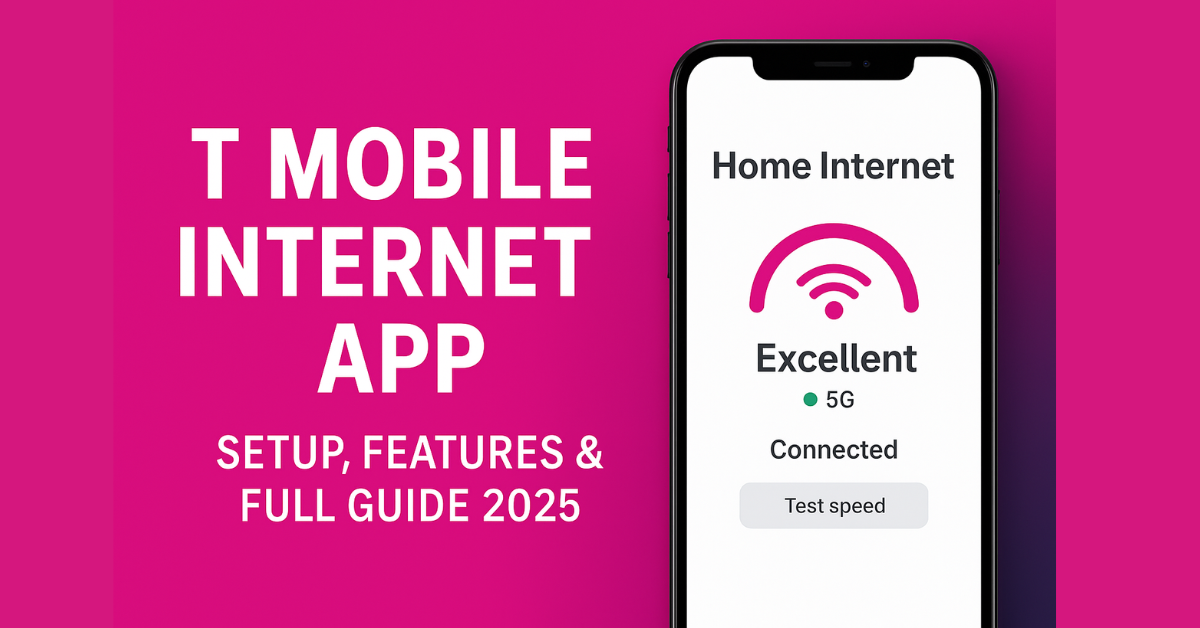
If you already have T-Mobile Home Internet or you’re thinking about making the switch, the T Mobile Internet App is something you’ll definitely want to have. With it, you can easily set up your home internet, keep an eye on your signal strength, manage the devices connected to your Wi-Fi, and even handle your monthly payments — all in one convenient place on your phone.
T-Mobile Home Internet works differently from regular broadband. Instead of relying on cables or fiber lines, it uses T-Mobile’s fast 5G and LTE networks to deliver your connection. This means:
- No messy cables or technician visits
- Quick self-setup using your mobile device
- Transparent pricing with no annual contracts
And at the heart of this simple setup is the T Mobile Internet App, designed for both Android and iPhone users.
What is the App for T-Mobile?
The T-Mobile Internet App is a free mobile application that helps customers:
- Set up their T-Mobile Home Internet Gateway device
- Manage Wi-Fi networks (names, passwords, device connections)
- Monitor real-time signal strength and performance
- Access support, updates, and troubleshooting tools
- Pay bills and view account details directly
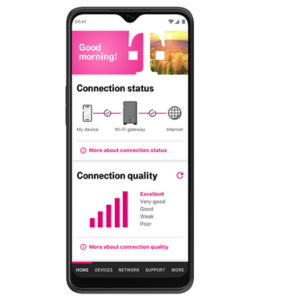
The regular T-Mobile app is mainly designed to handle mobile phone plans and billing, while the T Mobile Internet App is built specifically to help you manage your home internet connection.
How to Download & Install the T Mobile Internet App
Before you can start setting up or managing your home internet, you’ll need to download the T Mobile Internet App. The process is straightforward for both Android and iPhone users. There’s also an APK option if you can’t access the Play Store.
T Mobile Internet App for Android
If you’re using an Android device, follow these steps:
- Open the Google Play Store on your phone or tablet.
- In the search bar, type “T Mobile Internet App” or “T-Mobile Fiber”.
- Tap on the official app by T-Mobile USA.
- Hit Install and wait for the download to finish.
- Once installed, tap Open to launch the app.
✅ Minimum Requirements:
- Android 7.0 or higher
- A stable internet connection during installation
- Sufficient storage space on your device
T Mobile Internet App for iPhone (iOS)
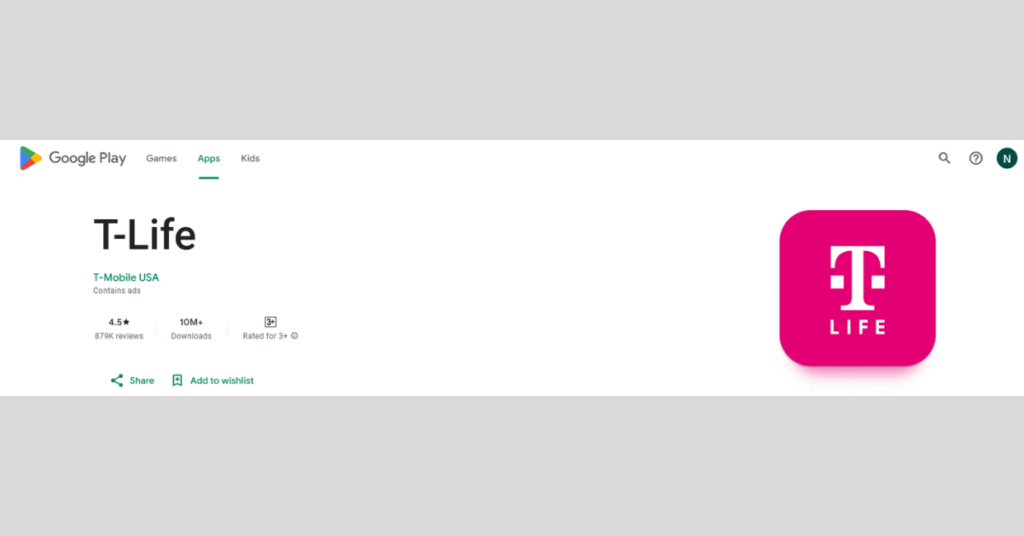
For iPhone users, T-Mobile integrates home internet features into its T-Life App. Here’s how to get it:
- Launch the App Store on your iPhone or iPad to get started.
- Search for “T-Life by T-Mobile”.
- Tap Get to download and install the app.
- Launch the app and sign in with your T-Mobile ID (or create one).
✅ Minimum Requirements:
- iOS 14.0 or later
- A valid Apple ID
- Internet connection during download
T Mobile Internet App APK (Manual Installation)
If you’re unable to get the app through the Google Play Store—for instance, if your device doesn’t support Play Services—you can still download it by installing the APK file manually.
⚠️ Important: It’s always safest to get the APK directly from T-Mobile’s official support page or a well-known, trusted APK site. Downloading it from random or unknown websites can put your device at risk, since those files might contain harmful software.
Steps to install APK manually:
- Download the official APK file to your device.
- Go to Settings → Security → Enable “Install from Unknown Sources.”
- Tap the downloaded file to begin installation.
- Open the app once it’s finished.
💡 Tip: After installation, it’s good practice to disable “Unknown Sources” again for security.
Logging Into the T Mobile Internet App
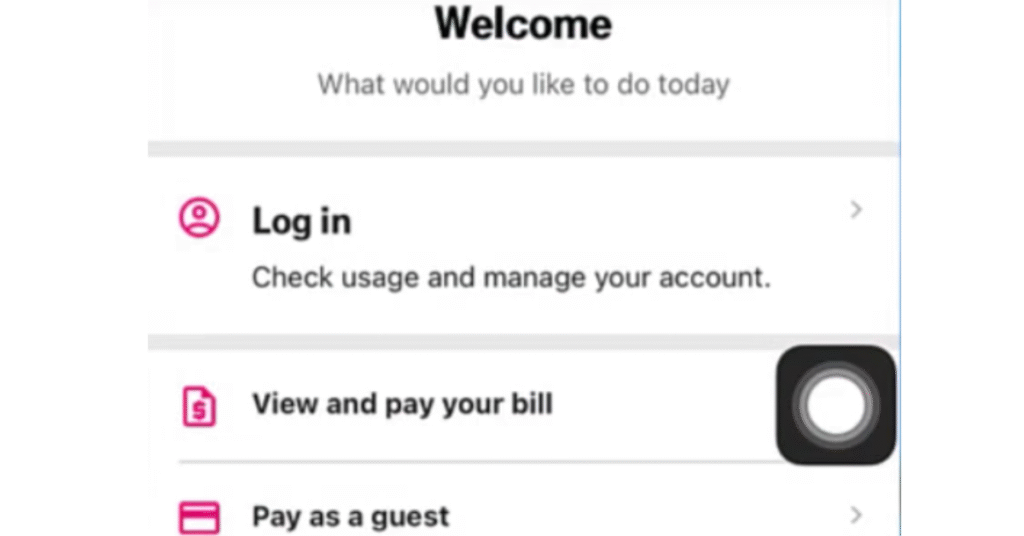
Once the app is installed, here’s how to log in:
- Tap Sign In on the welcome screen.
- Enter your T-Mobile ID and password.
- If you haven’t set up your account yet, simply tap on ‘Create T-Mobile ID’ and follow the easy instructions shown on your screen to get started.
- Once logged in, the app will automatically detect your T-Mobile Gateway if it’s powered on.
With the app downloaded and installed, you’re ready to set up your T-Mobile Home Internet Gateway and explore its powerful features.
Setup & Core Features of the T Mobile Internet App
After you’ve installed the T Mobile Internet App, setting up your T-Mobile Home Internet Gateway only takes a few quick steps. The app walks you through everything clearly, so you don’t need any special tech skills. Once it’s up and running, you can use the app to manage your Wi-Fi network, check signal strength, and adjust settings whenever you need — all from your phone.
Setting Up Your T-Mobile Home Internet Gateway
The app walks you through a step-by-step installation process to get your internet up and running quickly:
- Plug in the Gateway
- Connect the power cable and place the device near a window for the best signal.
- Wait for the device to boot up (this usually takes a few minutes).
- Connect the power cable and place the device near a window for the best signal.
- Open the App & Start Setup
- Launch the T Mobile Internet App.
- The app will automatically detect the Gateway if your phone is nearby.
- Launch the T Mobile Internet App.
- Position for Best Signal
- The app provides a real-time signal meter to help you find the ideal location.
- Aim for “Good” or “Excellent” signal strength for optimal performance.
- The app provides a real-time signal meter to help you find the ideal location.
- Create Your Wi-Fi Network
- Choose a Wi-Fi network name (SSID) and password.
- You can set up both 2.4 GHz and 5 GHz bands.
- Choose a Wi-Fi network name (SSID) and password.
- Complete Activation
- The app will run a quick connection test.
- Once successful, your network is live.
- The app will run a quick connection test.
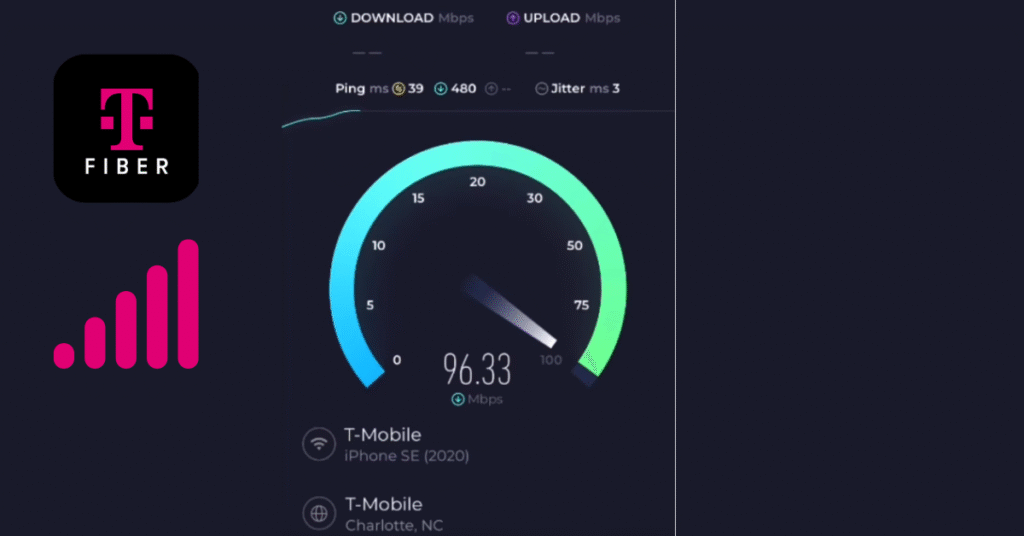
💡 Pro Tip: The closer your Gateway is to a window with strong 5G coverage, the better your speeds will be.
Core Features of the T Mobile Internet App
The app isn’t just for setup — it gives you complete control over your home network. Here are the key tools you’ll find inside:
1. Real-Time Network Monitoring
- See download and upload speeds, signal strength, and gateway status at a glance.
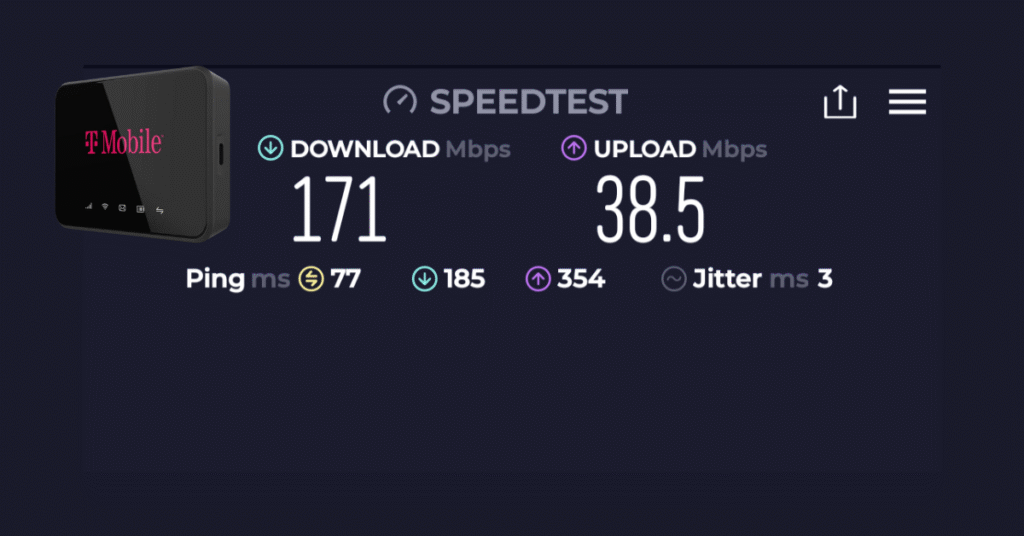
- Run built-in speed tests anytime to measure performance.
2. Device Management
- View all connected devices in real-time.
- Rename devices for easy identification.
- Block or pause internet access for specific devices — useful for parents.
3. Wi-Fi Settings & Security
- Update your Wi-Fi name and password.
- Switch between 2.4 GHz and 5 GHz networks.
- Add a Guest Wi-Fi network for visitors.
4. Parental Controls
- Set time limits or schedules for children’s devices.
- Instantly pause internet access during homework or family time.
5. Alerts & Notifications
- Get notified about network outages, firmware updates, or billing reminders.
- Receive tips to improve your signal or network performance.
6. Troubleshooting & Support
- The app includes step-by-step guides for common issues.
- You can chat with T-Mobile support directly inside the app — no need to call.
Quick Feature Overview Table
| Feature | Android | iPhone (T-Life) | Notes |
| Network Setup Wizard | ✅ Yes | ✅ Yes | Walks you through Gateway installation |
| Real-Time Signal Meter | ✅ Yes | ✅ Yes | Helps find best placement |
| Device Management | ✅ Yes | ✅ Yes | Rename, block, or pause devices |
| Parental Controls | ✅ Yes | ✅ Yes | Schedule or pause access |
| Guest Wi-Fi | ✅ Yes | ✅ Yes | For visitors or temporary access |
| Speed Test | ✅ Yes | ✅ Yes | Built-in |
| Chat with Support | ✅ Yes | ✅ Yes | Direct inside the app |
With your network fully set up and all features at your fingertips, the app also makes it easy to manage payments, check costs, and even test the service with a free trial.
Pricing, Free Trial, Payments & Account Access
One of the best parts about T-Mobile Home Internet is that it combines simple pricing with easy account management — all integrated within the T Mobile Internet App. Whether you’re just trying it out or already subscribed, everything from cost to billing is transparent and straightforward.
Monthly Cost of T-Mobile Home Internet
T-Mobile keeps its pricing simple:
| Plan Type | Monthly Cost (with AutoPay) | Taxes & Fees | Contract |
| Home Internet Plan | $50/month | Included | ❌ No annual contract |
| Without AutoPay | $55/month | Included | ❌ No annual contract |
✅ No hidden fees- ✅ No equipment rental charges — the Gateway device is included
- ✅ No data caps for most residential plans
Note: Pricing may vary slightly in some regions or during promotional offers. Always check the official T-Mobile site for the latest deals.
Can I Try T-Mobile Internet for Free?
Yes, T-Mobile often offers free trial periods for eligible customers.
- The standard trial lasts 15 days, allowing you to test the service risk-free.
- If you’re not satisfied, simply return the equipment within the trial window to avoid charges.
- You can sign up for the free trial through the T-Mobile website or by visiting a local store.
👉 This is a great option if you’re unsure about signal strength in your area.
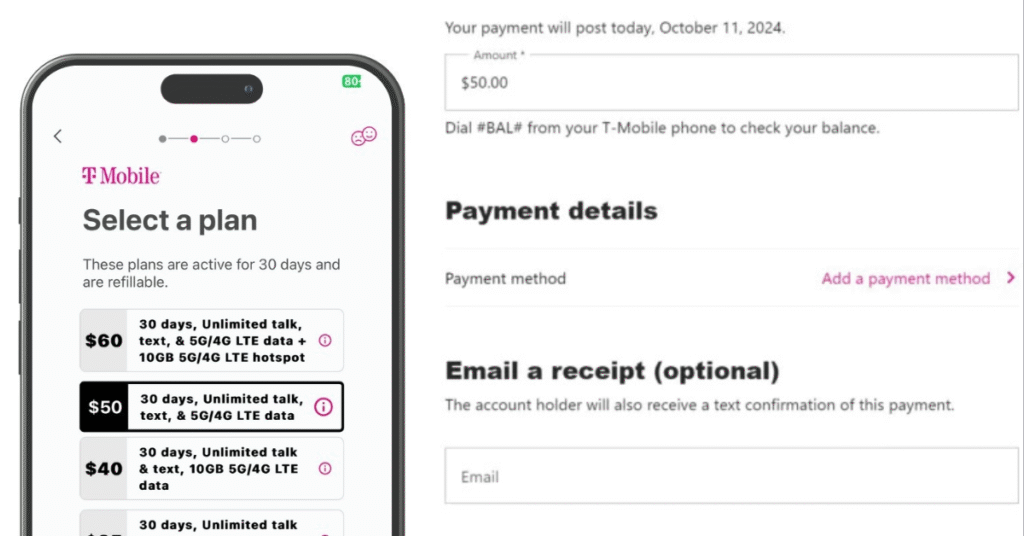
How to Pay for T-Mobile Internet
You have several convenient payment options, all accessible via the T Mobile Internet App:
1. AutoPay (Recommended)
- Set it up in the app under Billing → Payment Settings.
- Monthly charges are automatically deducted, and you get the AutoPay discount.
2. Manual Payments via App
- Tap Billing in the app menu.
- Select Make a Payment, choose your method (card, bank), and confirm.
3. Online Web Portal
- You can also log in via T-Mobile’s official website and pay through your account dashboard.
4. In-Store or Customer Service
- Visit a T-Mobile store or call support to pay manually.
How to Access Your T-Mobile Internet Account
Accessing your account is easy through multiple methods:
- Via the T Mobile Internet App
- Open the app → Tap Account to view your plan, usage, and billing.
- Open the app → Tap Account to view your plan, usage, and billing.
- Through a Web Browser
- Visit T-Mobile’s Home Internet portal.
- Log in using your T-Mobile ID.
- Visit T-Mobile’s Home Internet portal.
- On Your Gateway Device
- Some information (like signal strength) is also displayed on the Gateway screen.
How to Create a T-Mobile Internet Account
If you’re a new customer, here’s how to set up your T-Mobile ID:
- Open the T Mobile Internet App or go to the T-Mobile website.
- Tap Create T-Mobile ID.
- Enter your T-Mobile phone number or account number.
- Verify your identity via SMS or email.
- Create a secure password and complete your profile.
Once created, you can log into both the app and website using the same credentials.
How to Check Your Internet on T-Mobile
You can check your internet speed and performance through:
- ✅ In-App Speed Test Tool — built right into the dashboard.
- ✅ Gateway Display — shows signal bars and connection status.
- ✅ External Speed Test Websites — if you prefer, you can use Speedtest.net or Fast.com over Wi-Fi.
Can You Set Up T-Mobile Internet Without the App?
Technically, yes — you can use the Gateway device’s built-in display and a web browser to set up your network manually.
However, using the T Mobile Internet App is highly recommended because:
- It provides real-time signal guidance
- It’s faster and easier, especially for non-technical users
- It unlocks extra features like device management and alerts
International Availability + App Comparison
While the T Mobile Internet App is mainly built for users in the United States, T-Mobile’s network is expanding around the world. As a result, many people outside the U.S. are curious about whether they can access and use the app or the service in their own countries.
Here’s what you need to know if you’re outside the U.S. 👇
International Availability
T-Mobile currently offers its Home Internet service primarily within the United States. Instead of relying on traditional fiber or cable lines, it delivers high-speed broadband through its extensive 5G and LTE wireless network, making it easy for many households to get connected without complicated installations.
For international audiences:
- T-Mobile may operate under different brand names in some regions (e.g., Deutsche Telekom in Europe).
- The T Mobile Internet App may not work if the Gateway device isn’t registered to a U.S. T-Mobile Home Internet account.
- Certain features (like speed tests, parental controls, or billing options) may differ depending on local regulations or app versions.
👉 If you’re outside the U.S. and want to try T-Mobile Internet, it’s best to:
- Visit the local T-Mobile or partner website for regional offerings.
- Check if a compatible app version is available in your country’s App Store or Play Store.
- Contact customer service for availability in your area.
💡 Tip: Even if the service isn’t officially supported in your country, the app can still be downloaded (via APK or App Store), but full functionality will likely require a valid U.S. account.
T Mobile Internet App vs T-Mobile App (Comparison Table)
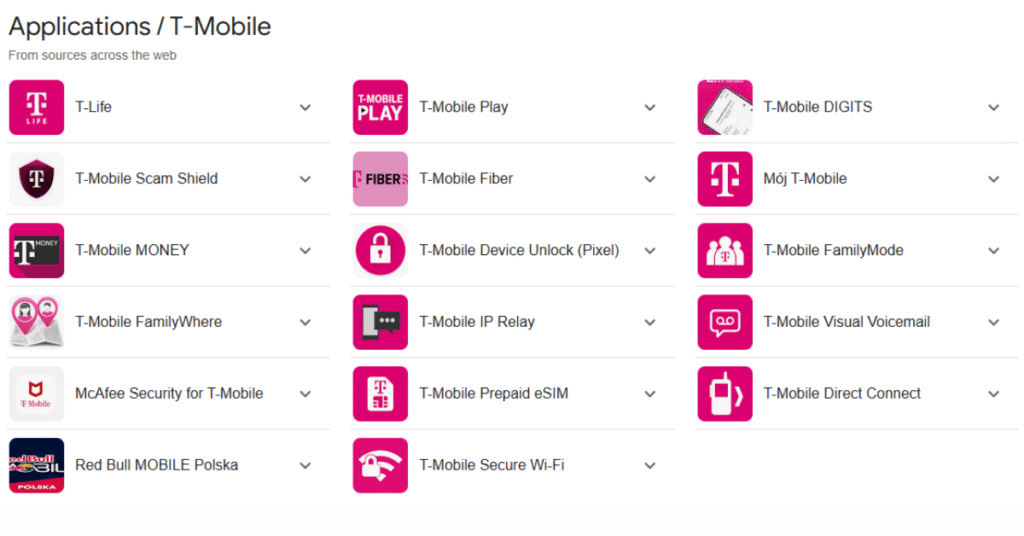
T-Mobile has two main apps that users sometimes confuse:
- T-Mobile App – for managing mobile phone plans, billing, and upgrades.
- T Mobile Internet App – for managing Home Internet services.
Here’s a quick side-by-side comparison:
| Feature / Function | T Mobile Internet App | T-Mobile App |
| Home Internet Gateway Setup | ✅ Yes | ❌ No |
| Wi-Fi Network Management | ✅ Yes | ❌ No |
| Device Monitoring & Parental Controls | ✅ Yes | ❌ No |
| Mobile Plan Management | ❌ No | ✅ Yes |
| Billing for Home Internet | ✅ Yes | ✅ Yes |
| Mobile Plan Upgrades & Promotions | ❌ No | ✅ Yes |
| Customer Support Chat | ✅ Yes (Home Internet) | ✅ Yes (Mobile) |
| Speed Tests & Signal Monitoring | ✅ Built-in | ❌ Not available |
Why This Matters
Many users download the wrong app at first, thinking the regular T-Mobile app will help them set up their Gateway. In reality:
- The T Mobile Internet App is essential for installation and ongoing network management.
- The T-Mobile App is useful if you also have mobile lines with T-Mobile — for checking your phone plan, paying bills, and managing upgrades.
👉 If you’re a Home Internet + Mobile customer, you’ll likely use both apps side by side.
FAQs
What is the app for T-Mobile?
The T Mobile Internet App is a free mobile application designed to help customers set up, manage, and monitor their T-Mobile Home Internet service. Through the app, you can install your gateway, check signal strength, run speed tests, manage connected devices, and pay bills — all from your phone.
What can the T-Mobile Home Internet app do?
The app offers:
- 📡 Step-by-step gateway setup with real-time signal feedback
- 🌐 Wi-Fi network customization (SSID & password)
- 🧒 Parental controls and device blocking
- 📈 Speed tests and signal strength monitoring
- 🔔 Notifications & troubleshooting tips
- 💳 Account management & billing access
It’s designed to be beginner-friendly while still giving advanced users control over their network.
How do I install internet apps?
You can install the T Mobile Internet App by downloading it from the Google Play Store (Android) or the App Store (iPhone). If the Play Store is unavailable, you can download the APK from an official or trusted source and install it manually. Once installed, log in or create a T-Mobile ID to get started.
Can I try T-Mobile Internet for free?
Yes ✅. T-Mobile offers a 15-day free trial for eligible new customers. You can sign up online or in-store. If you’re not satisfied, return the gateway within the trial period to avoid charges.
Which app is for free internet?
The T Mobile Internet App itself is free to download and use. However, it’s not an app that gives you free internet access. You need to have an active T-Mobile Home Internet plan or trial to use its features.
What is the monthly cost of T-Mobile Internet?
The standard cost is $50/month with AutoPay (or $55 without), and it includes taxes and equipment. There are no annual contracts or hidden fees.
How to pay for T-Mobile Internet?
You can pay through the app, the T-Mobile website, in-store, or via customer support. Setting up AutoPay through the app is the easiest way and gives you the monthly discount.
How do I access my T-Mobile Internet?
Open the T Mobile Internet App and sign in with your T-Mobile ID. You can also access your account via a web browser or view basic info on your gateway device’s display.
How to create a T-Mobile Internet account?
If you don’t have one yet, open the app or T-Mobile’s website, select Create T-Mobile ID, enter your account or phone number, verify your identity, and set a password.
How to check the internet on T-Mobile?
You can check your connection using:
- The app’s built-in speed test tool
- The gateway display (signal bars)
- External sites like Speedtest.net or Fast.com over your Wi-Fi
Can you set up T-Mobile Internet without an app?
Yes, but it’s not ideal. You can use the gateway’s screen and a browser for manual setup, but the app offers a faster, guided installation with better signal optimization and more features.
Conclusion
The T Mobile Internet App is the central hub for managing your T-Mobile Home Internet experience. From installation and real-time signal optimization to payments and parental controls, it’s designed to simplify the entire process.
Whether you’re in the U.S. or exploring options internationally, this app ensures fast setup, easy control, and reliable connectivity.
If you haven’t yet, download the app from your platform’s store and take full control of your home internet today.